Would you like to make this site your homepage? It's fast and easy...
Yes, Please make this my home page!

In almost all of the menus in X-Files it is good to note the tear-off option. This means that when you click the dotted line in the top of the menu, the menu becomes a separate window and can be placed anywhere on the screen. The menu items still work as before.
The <xxx> is the keyboard shortcut for that item.
2.1 File <alt-f>

The "File"-menu contains following items:
-
- Exit program <alt-f alt-e>
- Closes the window and ends the program.
2.2 Config <alt-c>
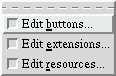
The "Config"-menu contains following items:
- Edit buttons... <alt-c alt-b>
- Starts the Button editor
If the editor is already open, raises it on top.
-
- Edit extensions... <alt-c alt-e>
- Starts the Extension editor
If the editor is already open, raises it on top.
-
- Edit resources... <alt-c alt-r>
- Starts the Resource editor
If the editor is already open, raises it on top.
2.3 Options <alt-o>
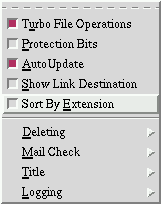
The "Options"-menu contains following items:
- Turbo File Operations <alt-o alt-u>
- This toggles the state of the "turbo" file operations. When active, the listings will be updated only after the whole operation is finished. Also the file operation gets as argument the whole filelist. You will probably want to set this on in the long run. When inactive, the file operation will be done separately for each of the selected files. This way the listings can be updated after every file. For beginners this gives a better view about what is going on.
- Protection Bits<alt-o alt-p>
- This toggles the visibility of protection bits (eg. -rw-r--r-x). The width of the file names are adjusted to hold this additional information. Normally you might want to keep this off, because it does slow the listing.
- Auto Update <alt-o alt-a>
- This toggles the state of the auto-update option. When active, this checks every ten seconds if there has been changes in the directory. If it finds changes, the listing is updated.
Useful e.g. when downloading or unpacking large packages in the background
- Show Link Destination <alt-o alt-s>
- This toggles the visibility of the link destinations. They are indicated as "
-> <destination>" after the link name.
- Sort By Extension <alt-o alt-e>
- When enabled, the files are sorted by the extension. Consumes a little more time than normal listing, so normally you might want to keep this off.
- Deleting <alt-o alt-d>
Submenu:
- Safedelete <alt-o alt-d alt-s>
- This toggles the state of the safe deletion. When active, the "deleted" files will be moved to the directory "~/.x-files/xfiles_dumpster/" or what you have configured in main resource file. When inactive, deletion is normal i.e. a permanent loss.
- Undo last deletion <alt-o alt-d alt-u>
- With this you can undo the latest deletion that you have made. The "deleted" files will be returned to the directory they were deleted from. If the safe deletion mode is inactive, this item is disabled.
- Empty trash <alt-o alt-d alt-e>
- With this you can empty the trash directory. This item is always available.
- Mail Check <alt-o alt-m>
Submenu:
Available only if you have the env variable MAIL present and valid.
- Enabled<alt-o alt-m alt-e>
- This toggles the state of the mail check option. When enabled, you will be notified whenever you get new mail. See next option for how.
- MessageBox<alt-o alt-m alt-m>
- If this is enabled, a message box will pop up when you get new mail. If you click OK, the mail reader you defined in xfilesrc will launch. Cancel acknowledges the message.
If this gets to your nerves, leave this disabled. Now when you get new mail, a slowly flashing text will appear in the menubar. You can click it to shut off or if you do nothing, it will go off after a minute.
- Read Mail on Ack<alt-o alt-m alt-r>
- If this is enabled, your mail reader will be launched when you click the flashing text in the menubar.
- Title <alt-o alt-t>
Submenu:
- Mem/swap <alt-o alt-t alt-m>
- This toggles the state of the free memory/swapspace indicator in the menubar. Available only if the file "/proc/meminfo" exists in the system. The indicator is updated every three seconds.
- Time <alt-o alt-t alt-t>
- This toggles the state of the date/time string in the menubar. The string is updated every thirty seconds.
- Logging <alt-o alt-l>
Submenu:
- Log <alt-o alt-l alt-l>
- This toggles the state of message logging. When enabled, all messages in the Info Areas and also MessageBox- and Error-messages are logged into log-windows. Also some other operations are logged.
- Log To File <alt-o alt-l alt-f>
- When enabled, all messages are logged into the file specified in the resources.
- Clear Log Windows <alt-o alt-l alt-c>
- This clears the log-windows, but not the log-file.
2.4 Buttons <alt-b>
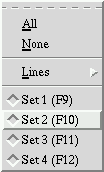
The "Buttons"-menu contains following items:
-
- All <alt-b alt-a>
- Sets all rows visible.
- None <alt-b alt-n>
- Hides all rows.
- Lines <alt-b alt-a>
Submenu:
- Line 1 <F1>
- Line 2 <F2>
- Line 3 <F3>
- Line 4 <F4>
- Line 5 <F5>
- Line 6 <F6>
- Line 7 <F7>
-
- Line 8 <F8>
- These toggle the corresponding button rows on/off. For behaviour see section 3, the Button area.
- Button set 1 <F9>
- Button set 2 <F10>
- Button set 3 <F11>
-
- Button set 4 <F12>
- These switch between predefined button sets. You can define the sets in the main resource file.
2.5 Help <alt-h>
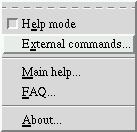
The "Help"-menu contains following items:
-
- Help mode <alt-h alt-e> or directly <ctrl-h>
- Initiates the pop-up help mode. When this is on, you can point and left-click any item and see information about that item, or right-click to see the command. In the Button editor there is a menuitem for inserting help texts for Actionbuttons.
-
- External commands... <alt-h alt-x>
- Shows a dialog where all the external commands X-Files uses are listed. It also tells if a feature that depends on those commands is available or not.
-
- Main help... <alt-h alt-m>
- This document.
-
- FAQ... <alt-h alt-f>
- Shows the X-Files Frequently Asked Questions.
- About... <alt-h alt-a>
- Brief information about the authors and the program itself.
2.6 Pop-up menu
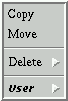
The "Pop-up menu" contains following items:
-
- Copy
- The file operation "copy".
-
- Move
- The file operation "move". This is disabled in virtual tar -mode, if your tar does not support "tar --delete".
-
- Delete
- The file operation "move". This is disabled in virtual tar -mode, if your tar does not support "tar --delete".
-
- User
- Submenu:
To this submenu you can add your own operations by presenting them in the resource file xfilesrc. Use the Resource Editor for the editing.


