Would you like to make this site your homepage? It's fast and easy...
Yes, Please make this my home page!
7.1 Button editor
You can start this editor from the Config-menu.
NOTE! The Actionbuttons will not perform any operations while the editor is open.
With this editor you can define the attributes for a single Actionbutton. The attributes you can edit are:
- Text
- Operation
- Arguments for the operation
- Options for the operation
- Relief i.e. 3D looks
- Font
- Color (text, background, active text, active bg)
- Cursor
- Border width
- Help text related to that button
You can use our set of internal procedures or external Unix-commands. There are the operation specifiers with which you can get the desired result.
When you start the Button editor, you are asked to click the Actionbutton in the main window you want to edit. When you click the button its attributes are loaded to the editor for editing. You can always change the button under editing by simply clicking it from the main window. If you have unsaved changes you will be reminded of that. The editor has two modes: Normal and Advanced. You can switch between modes with the button which says "Advanced..." when in normal mode and "Normal..." when in Advanced mode.
NOTE! In the upper right corner is an example button where you can see all the visible changes. None of the changes you make affect the real Actionbutton before you update the changes.
Control buttons:
- Apply:
- This applies the edited attributes to the selected Actionbutton. They are valid only during that session unless you also save them.
- Undo:
- This restores the original attributes the button had before editing.
- Save:
- This saves the edited attributes permanently to the file ~/.x-files/xfiles.buttons and also takes them immediately in use.
- Close:
- Closes the editor.
Menu items:
Tools <alt-t>
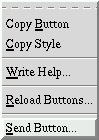
- Copy Button: <alt-t alt-b>
- This allows you to copy the edited button also to other places.
- Copy Style: <alt-t alt-c>
- This allows you to copy the style of the edited button also to other places.
- Write Help...: <alt-t alt-w>
- With this you can write the pop-up help text for that button. You can input the label and a descriptive text.
- Reload Buttons...: <alt-t alt-r>
- This allows you to reload the current xfiles.buttons-file in order to cancel unsaved changes.
- Send Button...: <alt-t alt-s>
- This allows you to send the current ActionButtonTM to our library of cool buttons that is available on the web-sites.
In normal mode you can edit:
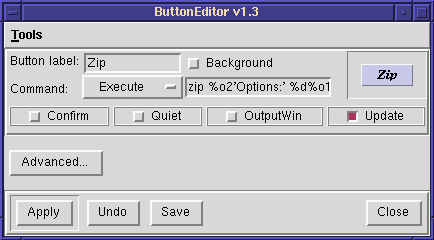
- Button label:
- The label of the button.
- Command:
- Here you can first select between internal or external procedures from the menu. External commands can be used with the
<Execute> item. Then you can write the rest of the command to the entryfield using the operators above.
- Background:
- Only available for external operations with
<Execute> command. If you wish your operation to be run in the background enable this. With foreground operations X-Files is "locked" until the end of the execution.
- Example button:
- When you press this button you get a list of default buttons for fast choosing.
- Options:
In advanced mode:
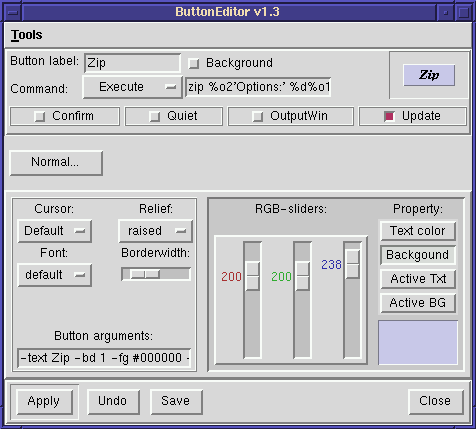
- Everything that is in normal mode
- Cursor:
- This sets the cursor shown when the pointer is above the button.
- Button relief:
- This changes the 3D looks of the button. The choices are: raised, sunken, ridge, groove and flat.
- Font:
- This changes the font of the button label. There are a few choices. If they are not enough, use the item "Other..." and it will open our Font Selector.
- Border width:
- With this slider you can adjust the size of the button border.
- Color:
- This sets the colors for the button. Choices are: text, background, active text and active background. Here active means that the pointer is above the button. The color can be adjusted with the RGB sliders, the result can be seen in the area in the lower-right corner of the window and also in the example button.
- Button arguments:
- This entry field shows in real time all the options. If you know what you are doing, you can change them directly from here.
7.2 Extension editor
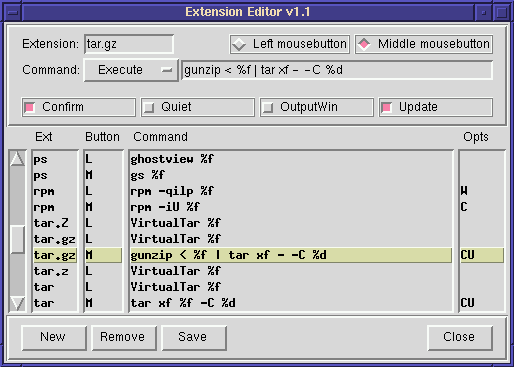
You can start this editor from the Config-menu.
With this editor you can bind what operation is initiated for each mousebutton + extension -combination. You can use external Unix-commands or internal procedures [VirtualTar], [VirtualZip] and [VirtualLha]. There are the operation specifiers with which you can get the desired result:
When you change or add a binding, you should select the extension and the mousebutton first. This is because if you have an already existing binding for that combination, the view changes so that the old one is in view and you can decide whether to overwrite or cancel the current input. If you do not have an existing binding for that combination, the listboxes will be sorted by the extension. Then you can input the rest of the data.
The controls are:
- Extension:
- Here you write the extension with or without the preceeding dot.
New since version 1.30 is that extensions can now be longer than just to the first dot. The extension matching is case sensitive.
- Mousebutton:
- Select left or middle mousebutton.
- Command:
- Here you can first select between internal or external procedures from the menu. External commands can be used with the
<Execute> item. All external commands are run in the background except those with the option OutputWindow. Then you can write the rest of the command to the entry field using the specifiers above.
- Options:
- Listboxes:
- These show the existing bindings. You can scroll them and select bindings for editing. The editable information changes when you drag the mouse with left button down and release it. It does not matter in which listbox you do this.
- New:
- Adds a new blank row which you can edit. Places the new row automatically under editing.
- Remove:
- Deletes the selected binding.
- Save:
- This button will save the current bindings to the file ~/.x-files/xfiles.extensions
NOTE: The changes are not automatically saved when you exit. You need to save them first. If you have made changes, you will be reminded of it.
- Close:
- Will close the editor window. If you have unsaved changes, you will be reminded of it. If you do not have unsaved changes, the window is closed without prompting. The bindings are immediately in use.
7.3 Resource editor
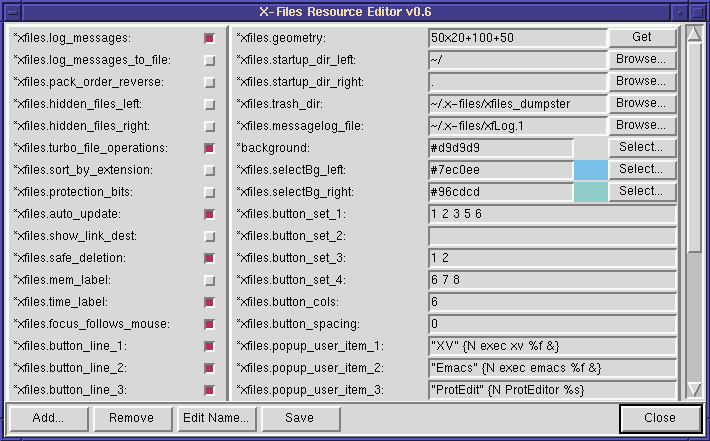
You can start this editor from the Config-menu.
With this editor you can configure the start-up options easily. It is made generic, so that you can edit the resource file by hand and the changes will be visible in the Resource editor the next time you run it.
The structure of the window is that the on/off -type X-Files options are on the left side. All the others are on the right side. You cannot remove any other X-Files option (*xfiles...) than the popup_user_item_? as they are needed by the program. Options that you might want to add are font and color definitions.
If you click the right mousebutton on an option, it will show the comment of that option for you. You can also edit that comment by selecting the "Edit comment..." menuoption.
The controls are:
- Add...:
- Asks for the type of the option (checkbutton/entry) and then creates the new option to the bottom of the right side.
- Remove:
- Removes the selected option after confirmation. You cannot remove any other X-Files options than the popup_user_item_? options.
NOTE: Make sure that the remaining popup_user_item_? are in numerical order. If you leave one from the middle out, the remaining will not become available.
- Edit Name...:
- You can change the name of the selected option with this button.
- Save:
- This button will save the current settings to the file ~/.x-files/xfilesrc
NOTE: The changes are not automatically saved when you exit. You need to save them first. If you have made changes, you will be reminded of it.
- Close:
- Will close the editor window. If you have unsaved changes, you will be reminded of it. If you made any changes, you will be asked if you want to restart X-Files in order to get the changes immediately in use.
New since version 1.30 are Browse... that opens FileSelector for selecting the file or directory and Select... for font options that opens the Font Selector.
New since version 1.40 is Select... for color options that opens the Select Color-dialog. All options whose value starts with a '#' are presumed to be color definitions.


