Would you like to make this site your homepage? It's fast and easy...
Yes, Please make this my home page!
Files included in the package
| Readme.install
| installation guide
|
| CHANGES
| what is new in the current version
|
| Registration.form
| form for your registration
|
| xfinstall
| installation script
|
| X-Files.tcl
| source file for the main executable
|
| be.tcl
| library file for Button Editor
|
| ee.tcl
| library file for Extension Editor
|
| re.tcl
| library file for Resource Editor
|
| xf_sel.tcl
| library file for selection dialogs
|
| vfs.tcl
| library file for Virtual Filesystem
|
| X-Files.1x
| short man page
|
| xfilesrc
| resource file
|
| xfiles.buttons
| configuration file for the buttons
|
| xfiles.extensions
| configuration file for the extensions
|
| xfiles.headers
| configuration file for the headers
|
| xfiles.main_pophelp
| help texts for fixed widgets
|
| xfiles.user_pophelp
| help texts for actionbutton widgets
|
| xfiles.manual
| document for X-Files
|
| xfiles.faq
| X-Files Frequently Asked Questions
|
| X-Files.xpm
| icon for the program
|
| xflogo.gif
| the X-Files logo
|
Installing
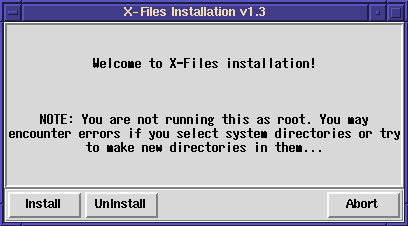
Installation is quite simple, just use the script that comes in the package.
- While using X, start the script: ./xfinstall
- if it does not start, try: wish xfinstall
- if it still does not start, make sure that you have wish installed and a symbolic link wish to your latest version (4.0 or higher) of it
- Select Install
- The script asks for four paths:
- for the main executable
- for the x-files library directory
- for your icon directory
(You can skip this if you do not want to install the icon.)
- for the man page
(You can skip this if you do not want to install the man page.)
You can change the suggestions to suit your desires. If you want to install the icon, you must also edit your window manager configuration file (e.g. .fvwmrc) to make use of the icon.
- You can verify your selections before the actual installation.
- Select "Yes" to start the installation.
Select "No" to fix an error in your selections.
- After the installation, you can start the program by:
- Clicking the "Start..." button
- typing X-Files, if the specified path is in your PATH environmental variable
- typing path/X-Files, if it is not
In the specified library directory are the configuration files for system-defaults. If you change the xfiles.buttons, xfiles.extensions or xfilesrc -files with our editors, the new files will be saved to ~/.x-files/ directory. If you wish to change the file header bindings, copy the system-default xfiles.headers to the ~/.x-files/ directory and edit your changes there.
We are working on editors for that as well, it will be released sometime in the near future.
The loading of the configuration files happens as follows:
- The resource files are loaded in the order:
- first system-default
- then user-defined (if existing)
- The configuration files are first tried from the ~/.x-files/ directory. If they could not be loaded from there, they will be loaded from the system-default library directory.
If these files could not be found in either of the directories, the program will report an error and abort execution.
Uninstalling
I cannot imagine who would want to uninstall this program, but in order to make that easy as well, we have included this option to the installation script.
- Choose Uninstall from the first screen.
- Type the name of the executable (if you have changed it) or the full path of it.
- If you typed just the name, the script will search all files matching that name.
- The script tries to find the library path definition in each of the files. If it could not be found, an error is reported and that file will not be removed.
(It is probably not an X-Files -file)
- Then you can select whether you choose to remove the executable and corresponding library directory (for each of the matches).
- The icon is searched (X-Files.xpm) and you can choose whether to remove it or not. If multiple matches were found, you can choose for each of them.
- The man page is also searched (X-Files.1x) and you can choose whether to remove it or not. If multiple matches were found, you can choose for each of them.
Problems? Why not go and check the X-Files FAQ in the X-Files homepage


